Additional author prompt example: Exemplar MCQ
|
|
 Item Assist will only use this prompt when an author inputs a sample question. (The prompt will be ignored unless an author adds a sample question to it when generating items.)
This additional author prompt asks the author to input an exemplar item for Item Assist to match the style and difficulty.
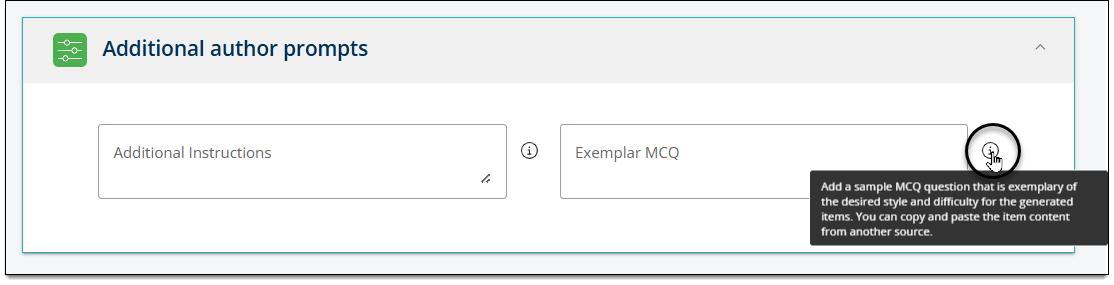
Summary of configurations
Below is a summary of the content to add in each field on the Additional author prompts configuration page in Item Assist.
- Field name: Exemplar MCQ
- Context: Add a sample MCQ question that is exemplary of the desired style and difficulty for the generated items. You can copy and paste the item content from another source. [
 This is just an example, you can input any text here.]
- Prompt: based on the following MCQ: [ A single space must be included after the ":".]
Add the "Exemplar MCQ" author prompt
- In the FIeld name field of the Add author prompt area, input Exemplar MCQ.
- In the Context field, input text such as Add a sample MCQ question that is exemplary of the desired style and difficulty for the generated items. You can copy and paste the item content from another source.
- The text you provide will appear in the Item Assist authoring prompt when authors hover over the tooltip. (Context is not sent to Item Assist; it is simply used to help authors understand the goal of each prompt.)
- The text you provide will appear in the Item Assist authoring prompt when authors hover over the tooltip. (Context is not sent to Item Assist; it is simply used to help authors understand the goal of each prompt.)
- In the Prompt field, input based on the following MCQ: with a single space typed at the end (after the ":"):
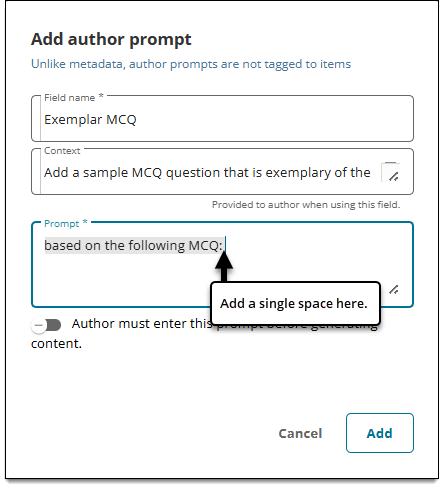
- (Optional) Toggle Author must enter this prompt before generating content to on
 to require authors to input instructions into this prompt. If the toggle is set to off
 , authors can skip the prompt when generating items.
- Click Add.
- The prompt is now shown in the Added author prompts panel.
- Click Save.
- The prompt is now shown to authors in Item Assist in the Additional author prompts section.
- You must now add a placeholder for this author prompt in the content generation prompt. If you do not add this placeholder, Item Assist will not use the prompt to generate items.
Add the "Exemplar MCQ" placeholder to the content generation prompt
- Click Prompt on the Item Assist home page.
- In the Content generation prompt, place your cursor somewhere after the last blueprint placeholder in the sentence that contains the blueprint instructions.
- If your prompt does not include a blueprint topic, place your cursor somewhere near the beginning of the prompt, within the description of the Task.
- Click the Exemplar MCQ button on the right side of hte page in the Additional author prompts section.
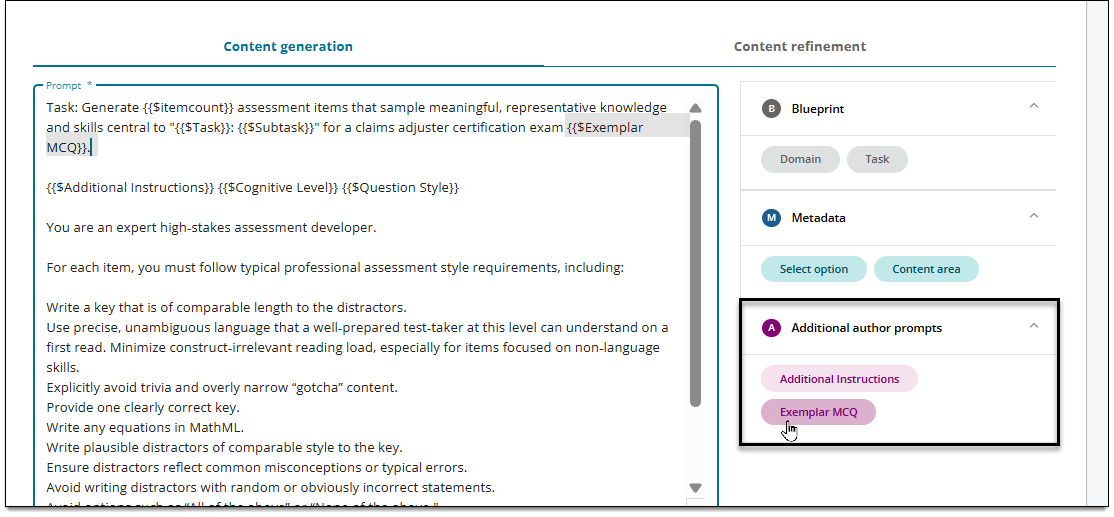
- The placeholder is added to the prompt.
- Click Save.